


Gallery - Photo Gallery, Album
4.6176.00 Reviews
App Specs
- Version
- 3.7
- Updated On
- License
- Free
- Downloads
- 1,000,000+
- Developer
- Rivers AppSolution
- Categories
- Photography
- Platform
- Android
Screenshots
 Analysis by AppCompare
Hey there, photo enthusiasts! So, I’ve been diving into the world of photo management apps and stumbled upon Gallery - Photo Gallery, Album. Let me tell you, it’s quite an interesting ride! If you’re like me and your phone is bursting at the seams with photos, keep reading to see if this app might just be your next best friend.
Where a gallery app can save time—and where it can trip you up
A photo gallery is only useful when it helps you move from “I know I took that picture” to actually finding it. I find the appeal of this app easiest to understand in ordinary situations: looking for a receipt photographed weeks ago, pulling up a picture to send to a family member, or sorting through a run of similar shots after a day out. A focused gallery can make those small jobs feel less scattered than browsing a camera folder full of thumbnails.
There is a trade-off, though. A familiar layout does not automatically make every part of a large library easy to manage, and a search box is only as useful as the way it handles your collection. Before relying on search for important pictures, I would try it with a few things I can identify confidently. If a search does not find what I expect, I would switch to browsing albums or the main photo grid rather than assume the image has vanished.
The app is a free photography utility from Rivers AppSolution, and its simple “Gallery” identity is a clue to its main role: organizing and working with photos and videos, rather than replacing a full photo-editing studio. It has a 4.6 average from around 42,000 ratings and more than a million installs, which makes it a well-established option for people looking for a dedicated gallery experience. It is currently at version 3.7, is rated for Everyone, and is available for devices running Android 8.0 or later.
Setup checks before trusting your library to it
On first opening any gallery app, I like to check what the screen actually shows before changing anything. Look for a few recent images, then an older picture and a video if you have one nearby. This quick check helps distinguish a display or access issue from a file that is genuinely missing. If the collection looks incomplete, close and reopen the app, then check the phone’s own photo library or file browser to see whether those items appear there.
I would also take a moment to understand the app’s layout before creating a new organization system. If it already groups pictures into albums, compare those groupings with how you normally look for things. Avoid moving or deleting files just to make the first screen look tidy; first learn whether the app is presenting existing folders or letting you create a separate arrangement. That distinction matters because removing a visible item from a gallery may not be the same as removing its underlying file, and the reverse can also be true depending on how the phone handles it.
One practical way to get comfortable is to test editing on a picture you can easily find again. Try a small change, check the result in the gallery, and confirm that the original is still available in the way you expect before applying edits to a batch of meaningful photos. This is not busywork: it helps you learn where edited results appear and whether the app’s workflow suits you, without turning a casual experiment into a cleanup task.
Worth Reading Before You Choose

EA SPORTS FC Mobile 26 Is a Bigger Football Game, but It Takes Time

Flipboard Shows What News Apps Must Do Beyond the Feed

Switching to Android Auto Means Rethinking Your Driving Routine

Google Calendar Makes a Crowded Week Easier to Manage

Ludo King Makes the Most of the Minutes Between Plans

Baby Panda World Brings Quick Play to Modern Phones, but Its Game Library Feels Busy
Why Choose Gallery - Photo Gallery, Album?
First off, the Gallery - Photo Gallery, Album app is designed to make your photo organizing journey as smooth as silk. You know how sometimes you can’t find that one picture from your last vacation because it’s buried under a million other snaps? This app tackles that problem head-on with its intuitive interface.
User-Friendly Interface
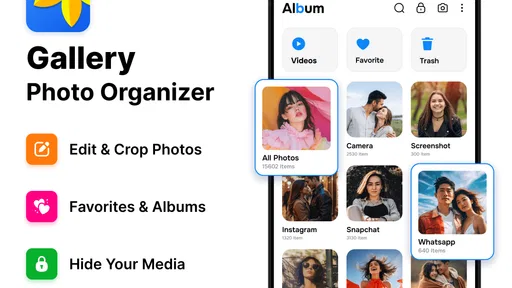
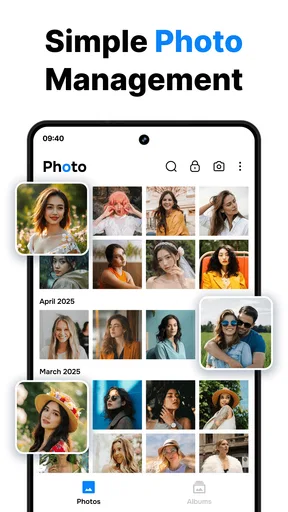
The interface is super clean and user-friendly. It’s like walking into a well-organized room where everything is in its place. You’re greeted with neat albums and clear navigation, so you’re never more than a few taps away from finding the exact photo you need. It supports various photo formats, too, which is a huge plus for those of us who love to experiment with different cameras and settings.
That straightforward presentation is especially helpful if you share a phone with someone who is less comfortable digging through folders. I would still avoid assuming that an album is a separate backup or a separate copy of a photo. Albums are useful as a way to browse and group images, but the safest habit is to treat the original files as important until you have confirmed how a particular action affects them.
Features Galore
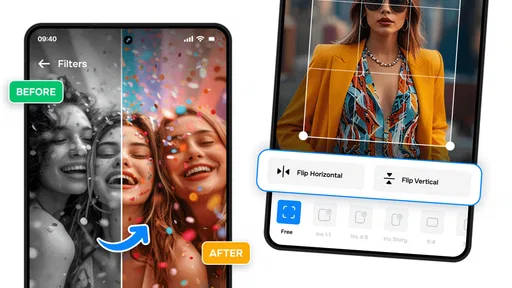
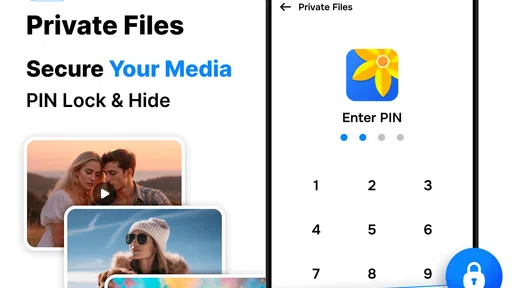
Oh boy, does this app pack in the features! From basic editing tools to more advanced options, it’s got you covered. You can crop, rotate, and add your favorite filters without leaving the app. Plus, it offers a slideshow option to showcase your photos in style. It even has a secure vault feature to keep your private photos safe and sound, away from prying eyes.
For everyday editing, I’d use those tools as quick fixes rather than as a replacement for a dedicated editor. Cropping can help frame a picture before sharing it, and rotating can correct a sideways shot without making me jump between apps. Filters are convenient when I want to try a different look, but I would keep an untouched version of anything I might want to edit more carefully later. The useful question is not whether an edit exists, but whether the result fits the way I plan to use the image.
The vault is best treated as a convenience for keeping selected images out of ordinary browsing, not as a reason to stop thinking about privacy. Before placing anything important there, I would test with an image that is not sensitive and confirm how it appears in the gallery afterward. I would also make sure I understand how to retrieve it. That small test avoids the unpleasant surprise of forgetting where a file went or mistaking a private viewing area for a complete backup.
Additionally, there’s a nifty search function. Can’t remember where you saved that cute picture of your dog? Just type in a keyword, and voila! It pops right up. It’s like having a personal assistant dedicated to your photo collection.
A sensible search workflow is to start with a clear, distinctive word and then broaden the search if needed. For example, I would try a name or a memorable subject before relying on a vague term such as “trip.” If search does not return a result, browse the likely album and check the date range rather than repeating the same query. This is a useful distinction for anyone deciding whether the app can replace a more elaborate cataloging system: quick retrieval is handy, but a person who needs detailed tagging and carefully managed archives may prefer a specialist tool.
Performance and Speed
Now, let’s talk about performance. The app runs smoothly without lag, even with a hefty photo library. I’ve tried other apps that crash or slow down my phone, but this one handled everything like a champ. It’s optimized for both Android and iOS, so no matter your device, you’re in for a seamless experience.
- Fast loading times
- Quick photo access
- Efficient memory usage
In a normal day, speed matters most when I have only a moment to find and share a picture. Imagine a friend asking for a photo from a weekend gathering while I am waiting for a bus: I want to open the gallery, find the right album or image, and send it without first reorganizing my whole collection. For that kind of light, repeated use, a direct gallery layout is more practical than opening a full editing suite every time.
For a very large or untidy library, I would judge performance over several visits rather than from one quick launch. Scroll through older items, open a few pictures, and see whether the organization still feels manageable. If the phone itself is low on free space or struggling generally, a slow gallery may be only one symptom; clearing space carefully or restarting the device can be a better first step than assuming the app is the cause. I would never delete valued photos as a troubleshooting shortcut.
Customization Options
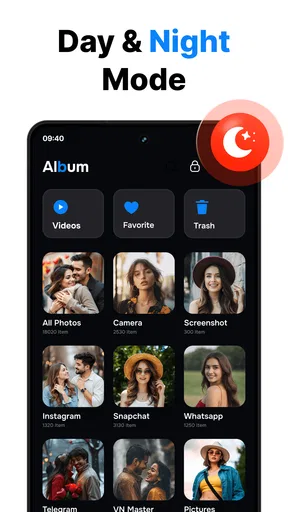
If you love personalizing your apps, you’ll appreciate the customization options here. You can tweak the theme and layout to suit your style, making the app truly yours. It’s the little touches like this that elevate the user experience.
When adjusting the layout, I would prioritize the view that makes my own habits quicker rather than choosing the most decorative arrangement. Someone who regularly looks for recent photos may prefer a simple chronological view, while a person who revisits family or hobby albums may value a layout that makes those groupings easy to spot. I’d change one setting at a time and use the app for a few days before deciding whether the new arrangement genuinely helps.
Backup and Sync
Backing up your photos is a breeze with this app. It offers seamless integration with cloud services, ensuring that your precious memories are safe and sound. You can sync across devices, making it easy to access your photos anytime, anywhere. It’s peace of mind in a digital age.
Even with a convenient backup workflow, I would check that a copy is actually available before relying on it as the only safeguard for family photos or work images. A gallery view and a backup are not interchangeable: seeing a picture in the app does not, by itself, prove that another copy exists elsewhere. If you use cloud services, verify the result through the service you normally use, and keep an eye on which account is active when moving between devices.
If the app seems to stop showing pictures after a phone change or a cleanup, work through the recovery in a calm order. Reopen the gallery, check the device’s own photo and file browsing tools, and look in the relevant albums before trying any removal or restoration actions. If a picture is absent from the gallery but visible elsewhere on the phone, the issue is more likely to be how it is being displayed or organized than a lost file. If it is absent from every place you normally store it, check the backup destination you already use before making further changes.
When the problem may be elsewhere
Not every missing thumbnail or slow screen is caused by a gallery app. The phone’s storage, the state of a file, or a change in how pictures are arranged can all affect what appears in a collection. I would compare the same image in another trusted viewer or the device’s file browser before deciding that Gallery has lost it. If it opens elsewhere, avoid deleting and re-importing it just to make the gallery refresh; first close and reopen the app and check the album or folder where it belongs.
There is also a difference between an app that helps you browse local pictures and a complete photo-management system for every device and account. If your priority is automatic off-device protection, use a backup service you can verify. If you need detailed image adjustments, layers, or a professional editing workflow, a dedicated editor is a better fit. Gallery’s strength is the everyday middle ground: finding, viewing, lightly adjusting, and showing photos without turning every small task into a project.
Final Thoughts
So, is Gallery - Photo Gallery, Album worth your time? Absolutely! Its combination of ease of use, powerful features, and reliable performance make it a standout choice for anyone looking to get their photo collection in order. Whether you’re a casual snapper or a dedicated photographer, this app has something for everyone.
My recommendation is strongest for someone who wants a familiar place to browse a growing phone library, make quick edits, and keep selected pictures apart from everyday viewing. It is less compelling for someone who expects a gallery to automatically solve every backup, search, and long-term filing problem. Compared with a phone’s built-in gallery, this app is worth trying if its album navigation and extra tools suit your habits; compared with a full photo editor or cloud library, it is the simpler companion rather than a substitute for every part of the workflow.
Ready to tame your photo chaos? Give Gallery - Photo Gallery, Album a shot and watch your photo management woes disappear. Happy snapping!
Pros
- User-friendly interface enhances navigation.
- Supports a wide range of image formats.
- Cloud backup options for secure storage.
- Customizable albums for better organization.
- Fast image loading and browsing speed.
Cons
- Lacks advanced photo editing tools.
- Advertisements can be intrusive at times.
- Limited sharing options with other apps.
- Requires frequent updates for stability.
- No automatic duplicate photo detection.
FAQs for Gallery - Photo Gallery, Album
What features does the Gallery - Photo Gallery, Album app offer?
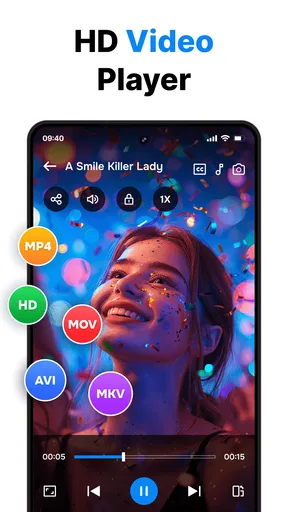
The Gallery - Photo Gallery, Album app offers a range of features including photo and video organization, customizable albums, and advanced search capabilities. Users can also enjoy editing tools, slideshow options, and secure privacy settings to protect their media. The app supports various file formats and allows for easy sharing across social media platforms.
Is the Gallery app free to use, or does it have in-app purchases?
The Gallery - Photo Gallery, Album app is free to download and use. However, it offers in-app purchases that unlock premium features such as additional cloud storage, advanced editing tools, and ad-free experiences. These options provide enhanced functionality for users looking to maximize their app experience.
Does the app support cloud backup for photos and videos?
Yes, the Gallery app supports cloud backup, allowing users to safely store their photos and videos. This feature ensures that media files are protected against device loss or damage. Users can choose from various cloud service integrations, providing flexibility in managing their storage solutions.
How does the app ensure the privacy and security of my media files?
The Gallery app prioritizes user privacy by offering robust security features. It includes password protection for albums, encrypted storage options, and the ability to hide private photos and videos. These measures ensure that your media files remain secure from unauthorized access while using the app.
Can I customize the appearance of the Gallery app?
Yes, the Gallery app allows users to customize its appearance to suit their preferences. It offers a variety of themes, layout options, and background colors. Users can personalize their viewing experience by choosing how albums are displayed and organizing them according to their liking.


